 KanbanCord
Keeping your team up to date: board posts and update feeds
A task list only helps if people look at it. KanbanCord can show your boards in your channels in two ways. Most servers use one of them; they also work well together.
Board posts: where things stand
/board post board:Sprint posts the whole board in the channel or thread you run it in, as a single message: every column with its tasks. Whenever anything on the board changes, from Discord or the website, the message edits itself a moment later. It works like a live dashboard, or a to-do list pinned to the top of the channel that is always current.
- It pings nobody: it is there when people want to look.
- Anyone can open a column or a task from it, or press Add task. What opens is only visible to them and uses their own permissions, so one person's clicks never change the post for everyone.
- If some people in the channel could not normally see the board, you are asked before posting. In a private thread, only its members count.
- To stop a post, delete its message.
Update feeds: what just happened
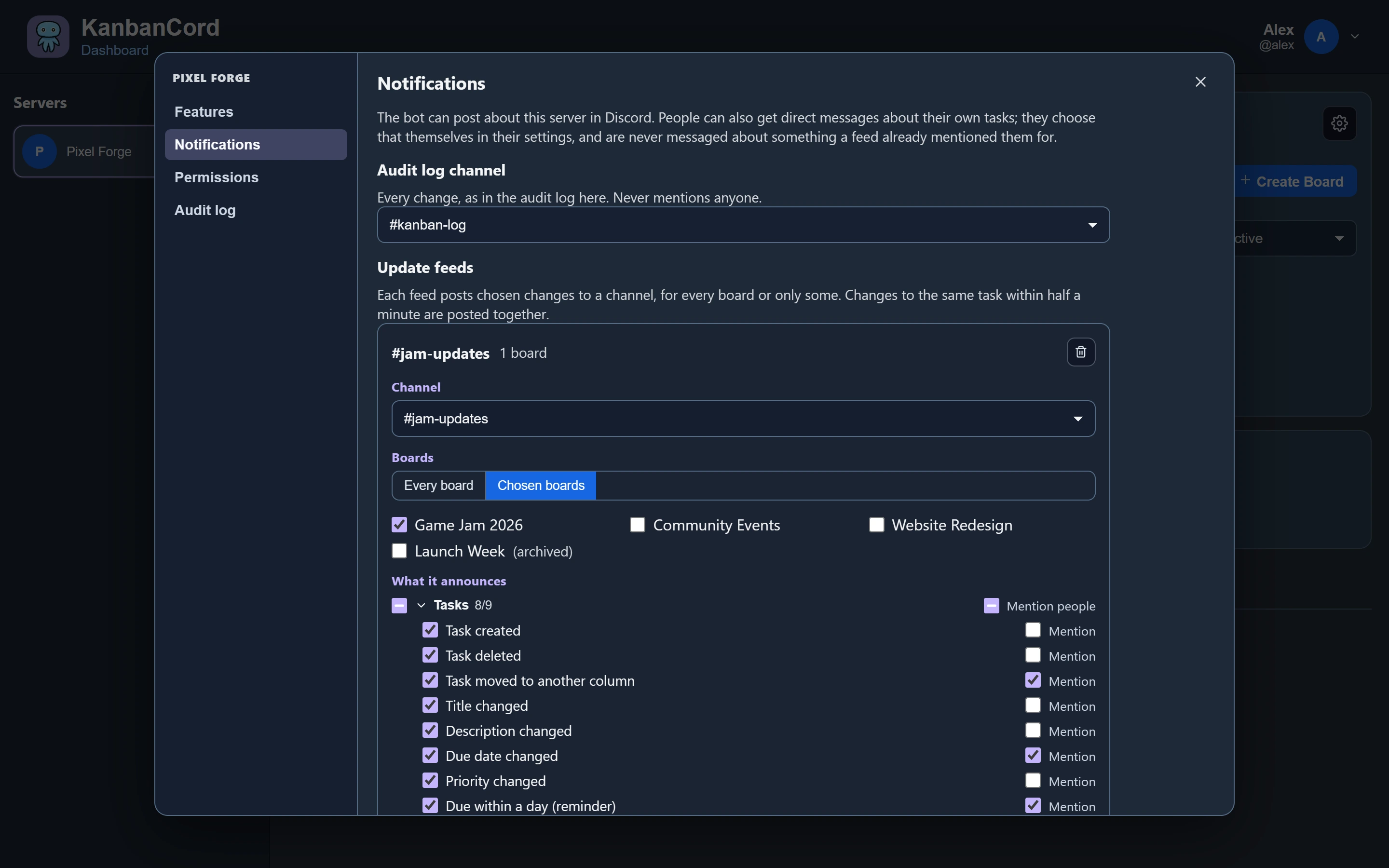
/kanbancord feed channel:#updates (for server managers) posts a message for each change: a task created, moved, assigned, commented on, and so on. Quick changes to the same task are grouped into one post.
- Feeds mention the people a change concerns, such as someone who was just assigned, or the people on a task that moved. On the website you choose, per event, which changes are posted and which of them mention people. Nobody is pinged about their own changes.
- Interactive feeds (the default for new ones) show the whole task under each update, with buttons to move it, a picker to assign people, and Edit and Follow buttons. People can act on an update without typing a command.
- A feed can cover every board or one board. Running the command again for the same channel and board updates that feed instead of adding another.
Which one?
Use a board post when people mostly want to know where things stand: a small team, a shared to-do list, an event checklist. Use a feed when people need to know when something changes, especially when it concerns them. Busy servers often do both: a board post in #board and a feed in #updates.
The audit log channel
For a complete record, /kanbancord audit-channel channel:#kanban-log mirrors the audit log: every change, compactly, pinging nobody. The full audit log, with filters, is on the website.
Your own notifications
Besides channels, people get direct messages about tasks they are assigned to, created or follow. See assigning tasks and /notifications.
More guides
- Getting started: a kanban board in your Discord server · Add the bot, create your first board and your first tasks.
- A shared to-do list for your Discord server · A todo list everyone in the server can see, update and tick off.
- Assigning tasks and sharing work in Discord · Give tasks to people or roles, and keep them in the loop.
- Due dates and reminders in Discord · Deadlines, and reminders before they pass.
- Organising tasks with labels and priorities · Coloured labels and priority levels to sort your tasks.
- Roles and permissions: who can see and change each board · Discord roles from the start, fine-tuned per board and per person.
- The website: every board at a glance · Drag and drop, search, filters and more, live with Discord.