 KanbanCord
Getting started: a kanban board in your Discord server
KanbanCord gives your Discord server kanban boards: a simple, visual way to track tasks as they move from “to do” to “done”. Think of a board as your team's to-do list, split into stages, that everyone in the server can see and update. You set it up and use it with slash commands, right where your community already talks.
1. Add the bot to your server
Use Add to Discord on this page or at the bottom of any page, and choose your server. You need the Manage Server permission there. The bot follows your server's roles from the start, so there is nothing else to set up.
2. Create a board
Run:
/board create name:SprintCreating boards needs the Manage Server permission by default; everyone who can send messages can then add and move tasks. See roles and permissions for the details.
The new board has three columns: To Do, In Progress and Done. Change them whenever you like with /column add, /column rename, /column move and /column delete. Many teams add a Review or Blocked column.
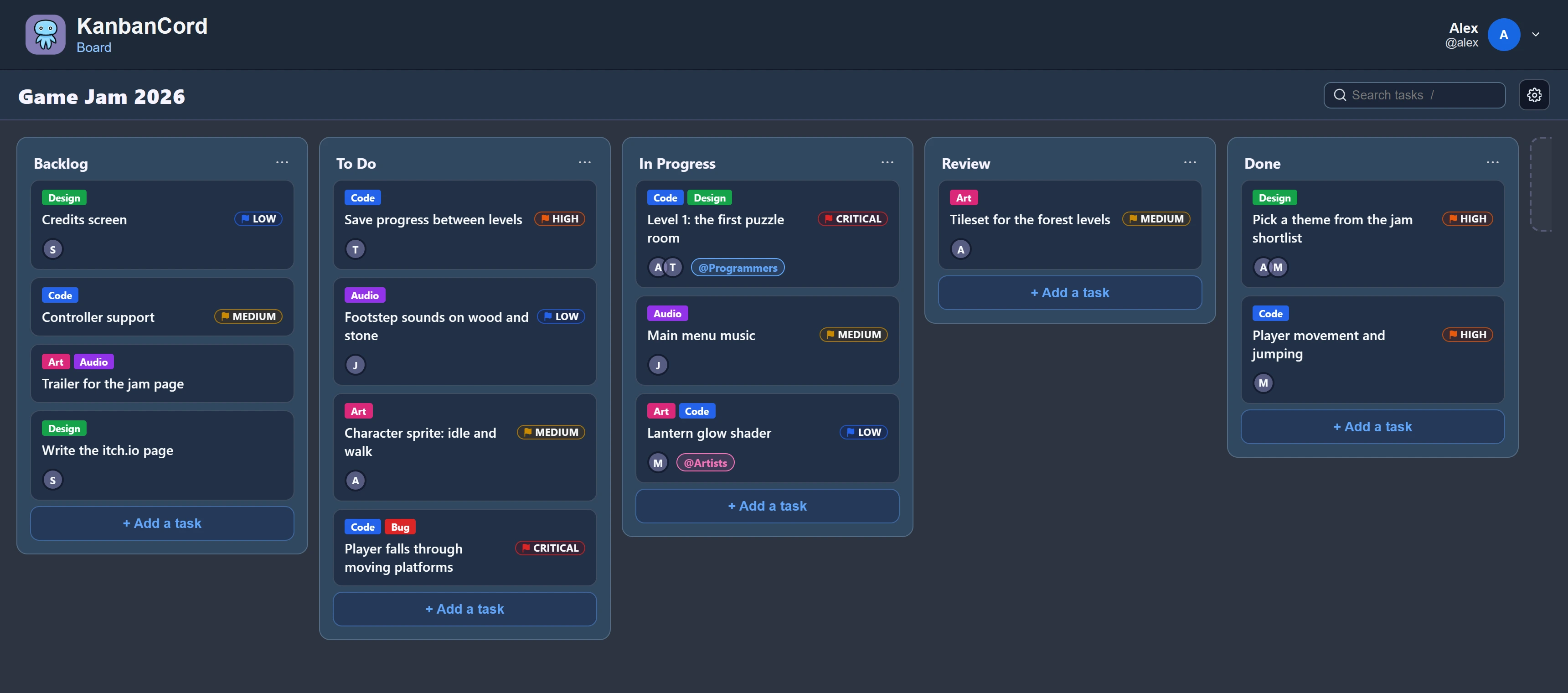
3. Add tasks
/task create board:Sprint opens a short form for the task's title and description. If your server uses assignees, due dates or priorities, the form asks for those too. Typing a board or task name in any command suggests matches as you type.
4. Move tasks along
As work progresses, move tasks across the board with /task move, for example to Done to tick them off your to-do list. /task view shows a task in full, with a menu for everything you may do to it: edit, move, assign, set a due date, comment, follow or delete.
/board view shows the whole board, and /board list every board in the server.
5. Choose what your tasks can have
New servers start in simple mode: boards, columns, and tasks with a title and a description. That is often all a small to-do list needs. When you want more, a server manager can switch on assignees, due dates with reminders, priorities, labels, comments and custom permissions with /kanbancord features. Switching one off again hides it without deleting anything.
6. Show the board to everyone
Run /board post in a channel to post the whole board as one message that updates itself whenever anything changes. See board posts and update feeds for the other ways to keep your team up to date.
Where to next
Run /guide in Discord for these steps with your progress ticked off, and /help for every command with examples. The website shows every board at a glance, with drag and drop, whenever you want the big picture.
More guides
- A shared to-do list for your Discord server · A todo list everyone in the server can see, update and tick off.
- Assigning tasks and sharing work in Discord · Give tasks to people or roles, and keep them in the loop.
- Due dates and reminders in Discord · Deadlines, and reminders before they pass.
- Organising tasks with labels and priorities · Coloured labels and priority levels to sort your tasks.
- Keeping your team up to date: board posts and update feeds · A live board in a channel, or a post for every change.
- Roles and permissions: who can see and change each board · Discord roles from the start, fine-tuned per board and per person.
- The website: every board at a glance · Drag and drop, search, filters and more, live with Discord.