 KanbanCord
Update feeds and task threads in Discord: set up, fine-tune and fix
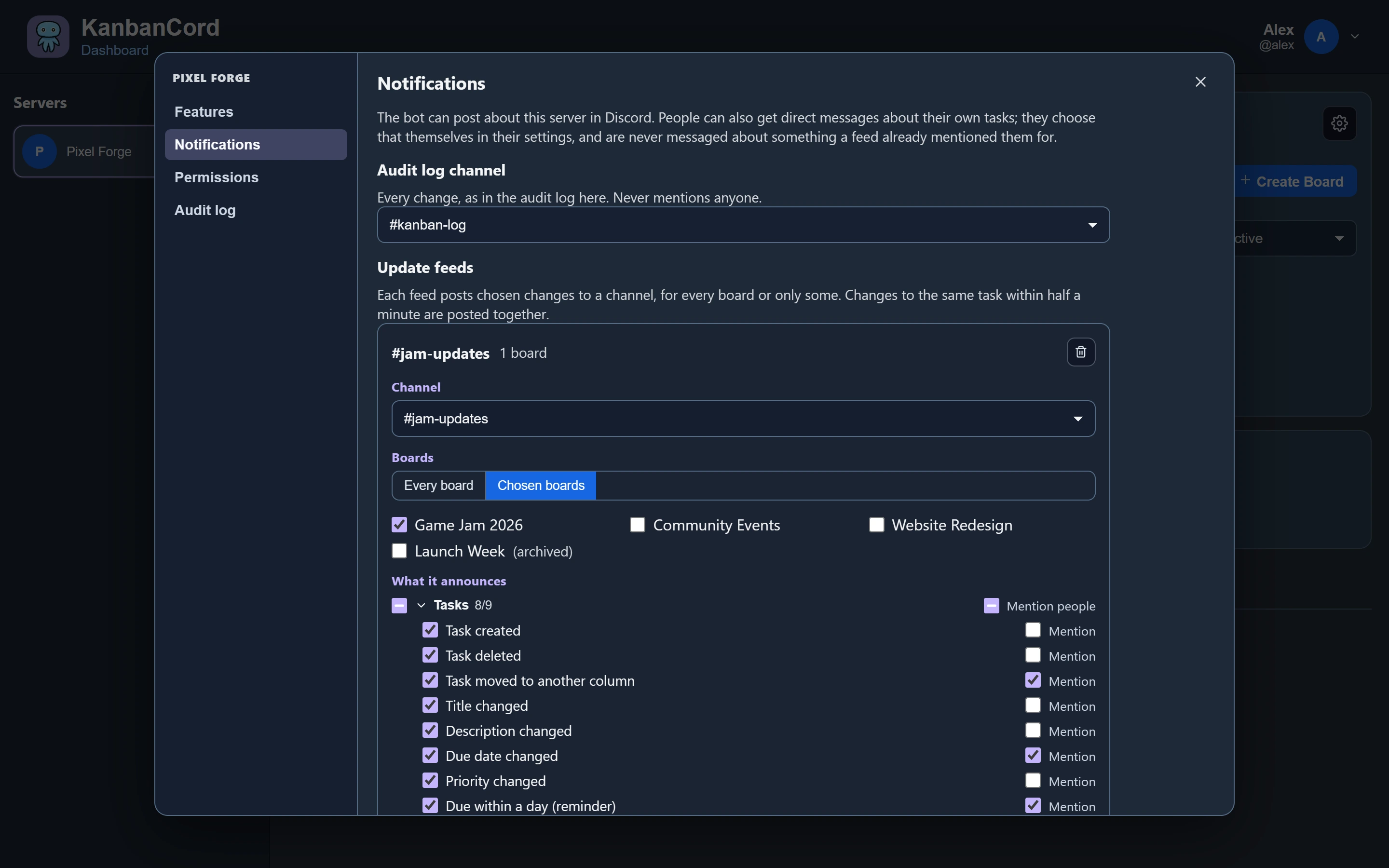
An update feed posts in a channel every time something happens on your boards, and mentions the people it concerns. A board can also give each task its own thread for discussion. This guide sets both up step by step, explains every setting, and lists what to check when something does not show up. Everything here can be done in Discord; the website has the same settings if you prefer it.
1. Add a feed
A server manager runs /kanbancord feed channel:#updates. Add board:Sprint to cover one board; leave it out to cover every board, including boards made later.
- The bot needs View Channel and Send Messages in that channel. If it is missing either, the command says so and saves nothing.
- A new feed posts most events: tasks created, changed, moved and deleted, people and roles assigned, new comments, labels, and changes to columns and boards. It mentions people when they are assigned or unassigned. Due date reminders, edited and deleted comments and board settings are off until you switch them on. Press Choose events and mentions on the reply to change any of it straight away.
- Running the command again for the same channel and board updates that feed instead of adding a second one.
- Posts are interactive by default: under each update, the whole task, with buttons to move it, assign people, edit or follow it. Add
interactive:Falsefor short posts without buttons.
2. Choose what it posts and who it mentions
/kanbancord settings lists the server's feeds. Pick one from the menu to open its editor, where each menu saves as you change it:
- What it posts: every event, from tasks created, moved and renamed to comments, labels, due date reminders and changes to the board itself.
- Which posts mention the people involved. Who that is depends on the event: someone being assigned or unassigned mentions that person; anything else about a task mentions the people assigned to it. Nobody is ever mentioned about a change they made themselves.
- Which boards it covers: every board, or the ones you pick.
- Posts with or without buttons, and whether roles assigned to a task are mentioned too, besides people.
- Delete feed, which asks first. Posts already in the channel stay.
Quick changes to the same task are grouped into one post, so moving a task and assigning someone a moment later is one message, not two.
3. Several feeds
- A server can have as many feeds as it likes: one for every board in #updates, plus one for the Design board in #design, say. A change is posted by every feed that covers its board.
- Feeds in the same channel are posted there once, with everything either of them wants, so a channel never gets the same update twice.
4. Different settings for one board
A feed covering many boards can treat one of them differently: post fewer events about a busy board, or mention nobody about a quiet one. Whoever may edit the board runs /board notifications board:Sprint, picks the feed, and changes its menus. Only that board is affected.
- The board follows the feed's own settings until something is changed here.
- Use the feed's settings undoes the board's changes. Choosing the same as the feed does that too, for that event.
- The feed's editor in
/kanbancord settingsdoes not show a board's changes; on the website, the feed lists the boards that changed it.
5. A thread per task
A board with a feed can give each task its own thread in that feed's channel, so the discussion about a task stays with the task instead of scrolling past in chat. Whoever may edit the board switches it on:
/board threads board:Sprint enabled:True- Which channel: threads go in one of the board's feed channels. With only one, it is chosen for you; with several, add
channel:#updates. No feed for the board yet? Add one first (step 1). - Public or private: public by default, started from the task's post in the channel, so anyone in the channel can join. With
private:True, only the task's creator and assignees are in it (and Discord's server moderators, who can see every thread). New assignees are added as they are assigned. Private threads need a text channel; announcement channels only have public threads. - Where updates go once a task has its thread: by default to both the thread and the channel, and only the channel post mentions people, so nobody is pinged twice.
updates:Only the threadkeeps the channel to new tasks only, with everything after that in each task's thread.updates:Only the channelposts nothing in threads, leaving them for discussion. - Permissions: the bot needs Create Public Threads (or Create Private Threads) and Send Messages in Threads in the channel. The command tells you which is missing.
How threads behave:
- A task gets its thread the first time something happens to it after threads are switched on, so existing tasks get one too, as they are worked on. To start one straight away, press Discuss in thread on the task, in
/task viewor under a feed post; once the thread exists, the button opens it. - On a board with a feed but threads switched off, Discuss in thread tells people threads are off. Whoever may edit the board is offered to switch them on instead, in the board's feed channel (or one they pick, if there are several).
- The thread is renamed when the task is, and archived when the task is deleted or archived.
- Updates posted in the thread include new comments made in KanbanCord, if the feed posts comments. Messages written in the thread stay in Discord: they are not copied into the task.
- If someone deletes a task's thread, the task gets a new one the next time something happens to it.
- Switching threads off stops new threads; existing ones stay as they are, and still close when their task is deleted.
/board threads board:Sprint on its own shows the board's setting. Options you leave out keep their current value, so /board threads board:Sprint updates:Only the thread changes just that.
Where to change what
- Add a feed:
/kanbancord feed, or Server settings → Notifications on the website. - A feed's events, mentions, boards, buttons, or deleting it:
/kanbancord settings→ pick the feed, or Server settings → Notifications. - A feed's events and mentions for one board:
/board notifications, or the board's settings → Notifications. - Task threads:
/board threads, or the board's settings → Task threads. - What you are told by direct message:
/notifications, or Settings → Notifications. Every direct message also has a button to stop messages from its server. - The audit log channel, every change pinging nobody:
/kanbancord audit-channel.
Adding feeds, changing them and the audit log channel are for server managers. A board's own feed settings and its threads are for whoever may edit that board.
Common setups
- One channel for everything: a feed for every board in #updates. Simple, and fine for small servers.
- A channel per team: a feed per board in each team's own channel, so each team only sees its own work.
- A quiet channel, discussion in threads: a feed with threads on and updates going only to the thread. The channel shows each new task once; everything after happens in its thread.
- Sensitive tasks: a separate board with private threads, in a channel only its team can see.
- Feed and board post together: a board post in #board for where things stand, and a feed in #updates for what just happened.
When something does not show up
Nothing is posted in the channel
- Does the feed post that event? Check it in
/kanbancord settings, and the board's own settings in/board notifications. - Does the feed cover that board?
- Can the bot still post there? Someone may have changed the channel's permissions since the feed was added. The website marks channels the bot cannot post in.
- With threads on and updates going only to the thread, later updates are in the task's thread, not the channel.
Someone was not mentioned
- Does the feed mention people for that event? The second menu in the feed's editor.
- Was it their own change? Nobody is mentioned about their own changes.
- Are they assigned to the task? Apart from someone being assigned or unassigned, posts mention the task's assignees.
No thread appeared
- Has something happened to the task since threads were switched on? Threads are made then, not all at once. Press Discuss in thread on the task to make it now.
- Does
/board threadssay On, but not working? The channel no longer has a feed for this board: add one, or choose another feed channel. - Can the bot make threads there? The command names the missing permission.
- Private threads only show up for their members: the task's creator, its assignees, and moderators.
Direct messages
Feeds are for channels. People also get direct messages about tasks they are assigned to, created or follow, unless a post already mentioned them where they could see it. See /notifications and assigning tasks.
More guides
- Getting started: a kanban board in your Discord server · Add the bot, create your first board and your first tasks.
- A shared to-do list for your Discord server · A todo list everyone in the server can see, update and tick off.
- Assigning tasks and sharing work in Discord · Give tasks to people or roles, and keep them in the loop.
- Due dates and reminders in Discord · Deadlines, and reminders before they pass.
- Organising tasks with labels and priorities · Coloured labels and priority levels to sort your tasks.
- Keeping your team up to date: board posts and update feeds · A live board in a channel, or a post for every change.
- Roles and permissions: who can see and change each board · Discord roles from the start, fine-tuned per board and per person, with worked examples.
- The website: every board at a glance · Drag and drop, search, filters and more, live with Discord.